
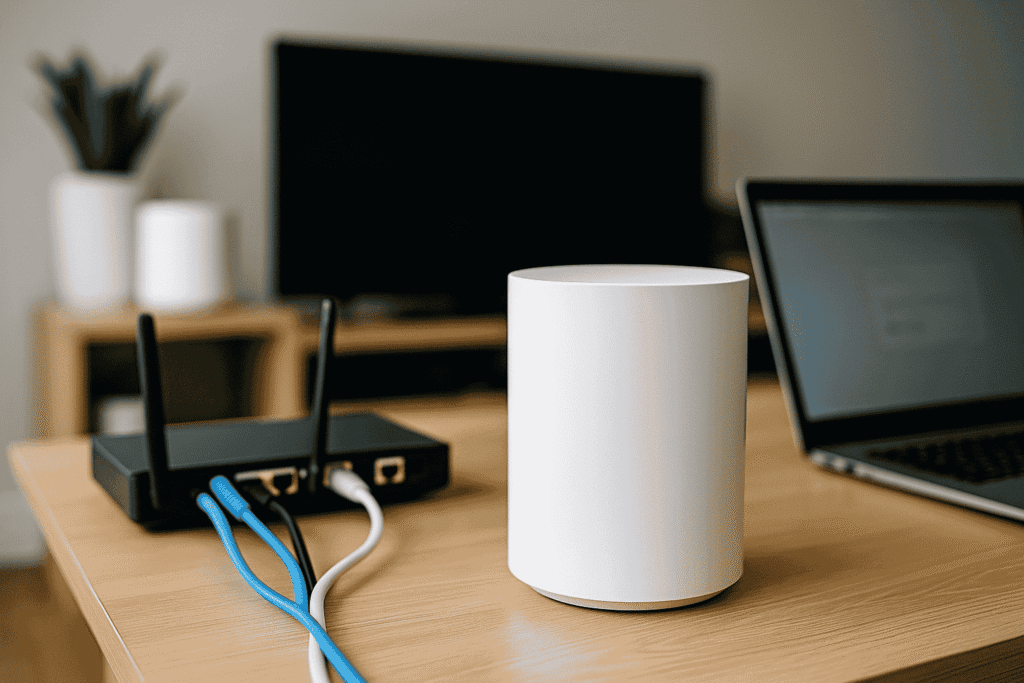
With more devices and larger homes demanding stronger wireless signals, many people wonder how to set up a mesh Wi-Fi network at home for seamless connectivity. This article explains everything from selecting the right mesh system to placing your nodes correctly. By understanding how to set up a mesh Wi-Fi network at home, you can eliminate dead zones and enjoy a consistent internet experience. Whether for streaming, working remotely, or gaming, a mesh setup offers a smart and reliable solution. In this guide, you’ll learn how to set up a mesh Wi-Fi network at home with ease and confidence.
Why Upgrade to a Multi-Node Wi-Fi Setup?
Standard routers can’t always keep up with modern household demands. Multi-node mesh networks offer more consistent performance and remove the need for Wi-Fi extenders. Unlike range boosters, mesh networks operate under a single SSID, allowing devices to switch automatically to the best node based on signal strength and location.
Advantages of mesh setups include:
- Smoother roaming from room to room
- Better speed and performance in all areas
- Simple scalability with more nodes
- Centralized network management using mobile apps
Selecting the Right Mesh Router for Your Needs
Choosing the right system is essential before you start. Popular brands such as TP-Link Deco, Google Nest, Netgear Orbi, and Eero each offer reliable performance. Consider your home size, number of connected devices, and internet speed when picking your system. More extensive spaces may need three or more nodes for total coverage.
Key buying factors:
- Home layout: Multi-story or complex floor plans require more nodes.
- Bandwidth needs: High-definition streaming and gaming need faster routers.
- Advanced features: Look for systems with parental controls, security options, and guest network support.
Installation Steps for Your Mesh Wi-Fi System
Here’s a simple breakdown to guide your mesh setup process:
- Unpack the system and locate the main router node.
- Connect it to your existing modem using an Ethernet cable.
- Install the companion mobile app for step-by-step configuration.
- Assign a network name (SSID) and a strong password.
- Position additional nodes in strategic locations (hallways, mid-points, upstairs).
- Test signal strength in each area to confirm stability.
If you want support setting up custom hardware or network configurations, our Web Development Services include smart home integration and connected solutions tailored for your needs.
Tips to Optimize Your Wi-Fi Coverage
Once you've completed your mesh setup, optimization is the next step. Placing nodes correctly makes a significant difference in performance.
- Keep nodes at table height or higher for better signal propagation.
- Avoid corners, closets, and behind metal or concrete objects.
- If available, use Ethernet backhaul for superior speed and reliability.
- Use your app’s signal diagnostics to refine positioning.
How Mesh Systems Compare to Extenders
Wi-Fi range extenders create multiple networks and often slow down speed. Mesh networks, by contrast, unify all nodes under one system and ensure fast handoffs between them. For homes over 1500 square feet, mesh networks are usually a better investment than traditional routers or extenders.
Managing Your Mesh System Daily
Modern mesh routers come with management apps that let you:
- Track real-time network usage
- Set up parental controls and device priorities
- Run internet speed tests
- Configure guest networks or security protocols
Some systems like Google Nest and Eero offer automatic updates and AI-based routing, which helps balance bandwidth intelligently based on device needs.
Common Problems and How to Fix Them
If you're facing issues after your mesh installation:
- Node not detected: Try resetting and re-pairing via the app.
- Spotty internet: Move the node closer to the main router.
- Slow speed: Switch frequency bands or reduce device load.
These issues often resolve with basic repositioning or a firmware update. Understanding how to set up a mesh Wi-Fi network at home can prevent most of these challenges from happening in the first place.
Final Takeaway
Learning how to set up a mesh Wi-Fi network at home gives you full control of your internet experience. You’ll benefit from reliable, high-speed internet whether you’re on the ground floor or the attic. A smart mesh setup improves streaming, gaming, and work-from-home productivity, all while simplifying your network into one seamless environment.
If you're upgrading your home tech stack, don't forget to explore our web development and digital integration services for a personalized tech makeover.
For mesh system recommendations, visit Eero’s Official Site or consult your ISP for bundled solutions.